Name every photo with the date first, then a short project or client code, then a frame number and a version label, like 2026-03-14_Rivera_Portraits_0142-edit1. Set that pattern up once and your computer’s ordinary search becomes an archive you can actually query.
The whole method takes about ten minutes to decide and thirty seconds per shoot to apply. It works the same in Finder, File Explorer, Bridge, Lightroom, or whatever photo manager you already open every morning.
Table of Contents
- What You Need
- Step-by-Step
- Common Mistakes
- Frequently Asked Questions
- Should photo filenames include spaces, accents, or special characters?
- How should I name files from a long event with hundreds of images?
- What is the best way to name edited versions and client proofs?
- Can photo filenames replace keywords in Lightroom or other catalogs?
- How do I safely rename photo files across a backup and cloud storage?
- Conclusion
What You Need
Four things, and none of them are software. You need a short project code you can repeat without thinking, a fixed order for the pieces of a filename, somewhere to store the details that do not fit in a name, and a backup that already ran before you touch a single file.
Start by writing your project codes down. A code is built from the client or family name plus the type of job, kept under about twelve characters, no spaces: RIVERA-PRF, OKONKWO-WED, DELACROIX-FAM. Write the code into a spreadsheet or a note the morning of the shoot, before you format a card.
Second, decide the metadata order and write it down as a single line. Mine is date, project code, subject or frame number, file state. Once the order is fixed, every filename you produce for the next five years will sort and search the same way.
Third, pick where the long-form information lives: a spreadsheet for deliveries, a catalog for keywords, or an XMP sidecar file that travels with the image. Filenames identify; catalogs describe. Mixing those two jobs is how people end up with 90-character filenames nobody can read in a file browser.
Fourth, a backup that ran before the renaming step. Renaming is the least reversible thing in a photo workflow, because it touches every reference to that file. Copy first, rename second, and keep the originals until the new names have survived a search.
Step-by-Step
Six steps take you from a folder of camera-default names to a searchable archive. Do them in order once, and the sixth step tells you whether the first five actually worked.
1. Define Your Project Naming Convention
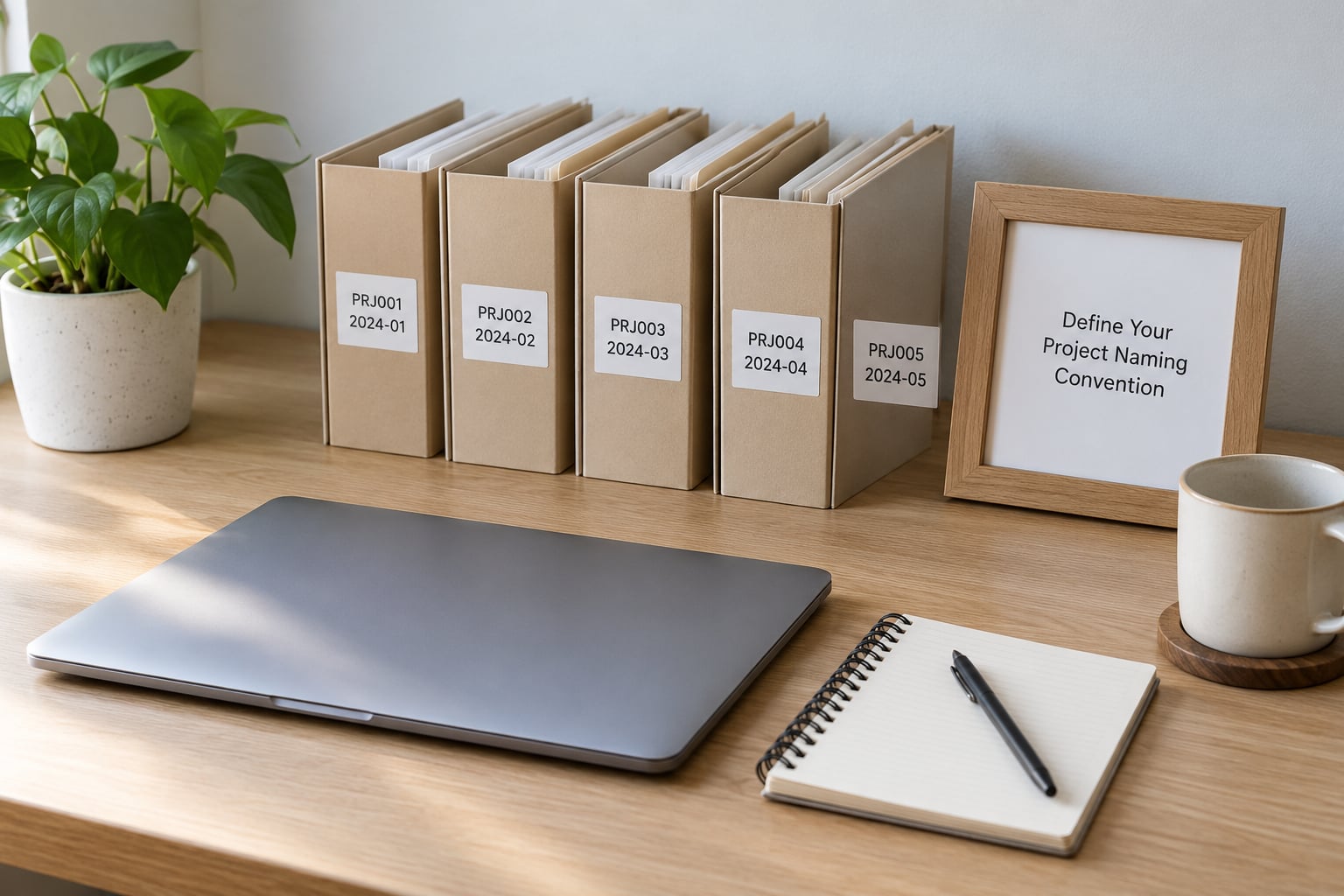
Pick one code format and use it everywhere: raw folders, exports, delivery folders, retoucher handoffs, invoice lines. The test is simple. Six months out, can you type the code into a search box and get every file from that job, including the version you sent the client last March?
Keep the code boring. Derived from the last name and the job type, uppercase, no spaces, no punctuation that changes meaning. The most common failure I see is a code that works on the desktop and collapses in a spreadsheet, an email subject line, or a URL.
One extra field earns its place on shared jobs: your initials or the second photographer’s. OC_RIVERA-PRF_0142 tells you which card the frame came from when two people shot the same event. On solo work, skip it. Every extra field is a field you have to keep consistent.
2. Build a Filename From Useful Metadata
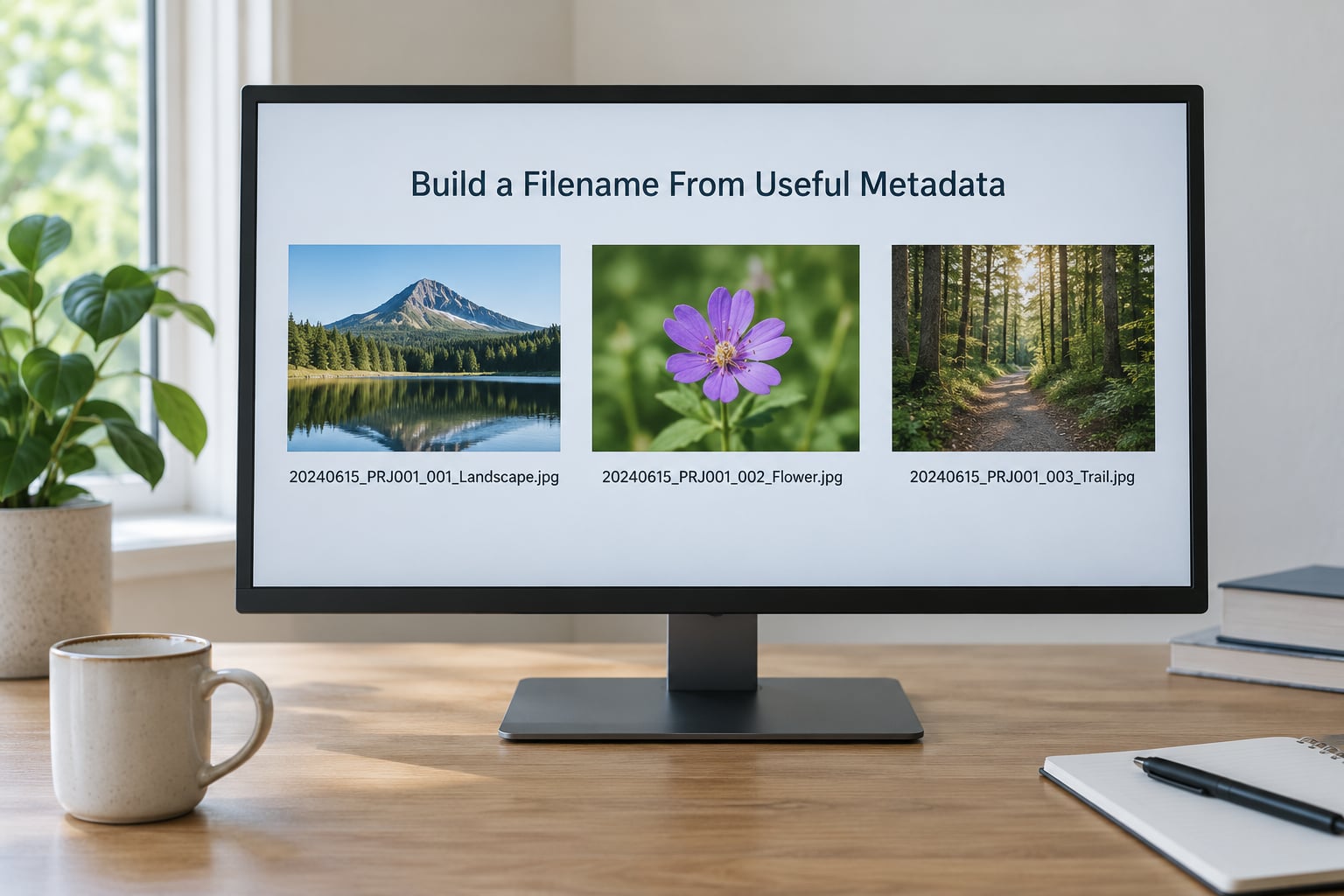
Build the name in the same four steps every time: an ISO 8601 date (YYYY-MM-DD), the project code, a zero-padded sequence number, then a version label. Underscores separate the pieces so no fragment runs into the next one.
- Capture:
2026-03-14_RIVERA-PRF_0142.CR3 - First edit:
2026-03-14_RIVERA-PRF_0142-edit1.jpg - Approved:
2026-03-14_RIVERA-PRF_0142-final.jpg - Web proof:
2026-03-14_RIVERA-PRF_0142-proof-web.jpg
Leading zeros matter more than they look. 0142 sorts correctly against 0999; plain 142 sorts as text after three digits and before four-digit numbers, which quietly scrambles frame order in any software that sorts alphabetically.
Keep the whole name under roughly 60 characters. File browsers, gallery plugins, and most web servers truncate past that, and a truncated name is a name you cannot search for. Date, code, number, and one short label usually fit in that budget.
Leave the extension exactly where it is, at the end. Some old web tools still assume three characters after the last dot, and a stray second period will break them.
3. Use Consistent Numbering and Abbreviations
Two habits keep searches predictable: fixed-width sequence numbers and a written list of abbreviations. Zero-pad to four digits for a single shoot, six if you expect to run past 9999 frames in one job.
Keep the abbreviation list to one page and treat it as fixed. PRF for portrait, WED for wedding, DOC for documentary, SEL for selects, PRF-S for proof sheet. Every abbreviation you invent is one more thing you must remember at 6 a.m. on a shoot day, so invent as few as possible.
The rule that matters is that a code never changes meaning. If PRF meant portrait in 2026 and product in 2029, a search on PRF returns a decade of mixed results, which is worse than no naming scheme at all.
Documentary and event frames often deserve a second number. Shot 03, frame 0142, written as 2026-03-14_RIVERA-PRF_s03_0142.CR3, lets you pull an entire setup without pulling the whole card.
4. Apply the System During Import and Export
Copy cards first, rename the copies, and leave the files on the card alone until the shoot is backed up twice. Confirm the file count matches the camera’s count before you ever format a card.
If you use a catalog, do the renaming inside it. In Lightroom Classic, the Import dialog has a Rename Files checkbox with a Renaming Template you edit to include date, project code, sequence, and version. In Capture One, the same job sits under Import, then Image Handling, where Name files offers a name template. Renaming in the tool keeps its internal links intact.
Renaming the same files in Finder or File Explorer while a catalog is open is the one step I would avoid. The catalog keeps pointing at the old paths and you get red missing-file markers across the whole shoot, which is a long afternoon of fixing links you did not need to break.
Add version labels only on exports, never on raw captures. A raw should stay a raw; the moment you retouch it, it becomes a new file with its own name. Before a bulk rename, search the folder for names ending in ” copy” or “-1” from earlier duplication and clear those out first, or you will number the duplicates too.
5. Add Sidecar or Catalog Information
Filenames should carry identity, not everything. GPS coordinates, camera model, exposure data, captions, and rights live in EXIF metadata and in your catalog or sidecar file, where they can be searched without making names unreadable.
The division is easy to remember: the filename says what the photo is, the metadata says everything else about it. A file called 2026-03-14_RIVERA-PRF_0142.CR3 with a keyword for the couple’s names and a description of the shot gives you both, and neither part gets bloated.
When you have forgotten the details a filename never held, read the metadata rather than guessing. On Windows, right-click a photo and open Properties, then the Details tab. On macOS, select the file, press Command-I, and open More Info. For hundreds of files at once, the exiftool command line reads date, camera, and GPS straight out of a folder.
Location is the field most often missing from a good filename. If GPS data is on, capture it once in your catalog and stop trying to squeeze coordinates into the name.
6. Test the System Before You Need It
Run a retrieval test. Pick five photos at random, write their details on paper without looking at your screen, then close everything and come back later. Search for the project code, a surname, a date, and the word “final”.
Write down which of the four searches returned nothing. That missing search is the field your convention forgot, and it is far cheaper to add a field now than to rename ten thousand files later.
Do the test again after any change to the scheme. A system nobody has checked since the day it was built is a hope, not a system, and the only thing that reveals the gap is a cold search by someone who did not just finish editing.
Common Mistakes
Almost every messy photo library comes from one of these. Each has a straight fix.
- Vague names. IMG_9876 and DSC0001 carry no meaning, so the only way to find the file is to open all of them. Fix: add the date and project code to every name you touch.
- Mixed date formats. One folder uses 03-14-26, the next uses 20260314, the next uses 14 March. Fix: lock the convention to ISO 8601, YYYY-MM-DD, and treat any other format as a bug.
- Spaces and stray symbols. Spaces are legal but turn into %20 in a URL and break scripts that split names on whitespace. Ampersands, colons, asterisks, and question marks are refused outright on Windows. Fix: use hyphens within a segment and underscores between segments, and never mix both styles in one scheme.
- Duplicate numbers. Files copied from two cards collide, and the operating system quietly appends ” copy” or “-1”. Fix: sort by date taken, rename in a single pass so the tool renumbers, then search for leftovers before you close the folder.
- Overloaded names. Fifty characters of location, weather, mood, and lens end up truncated in every file browser. Fix: keep the name under 60 characters and move the rest into the catalog.
- Renaming raws inconsistently. Half your archive renamed, half untouched. Fix: keep raw captures as the camera wrote them and name only the exports and deliveries.
- Renaming outside an open catalog. The catalog loses track of its files. Fix: do renames through the catalog’s import or rename tools, or close the catalog first and reconnect the folder on reopen.
Photos that arrive from someone else break a scheme fast. Family phone dumps and guest uploads arrive already named, so rename them on import to your pattern rather than letting two systems share one folder. On shared jobs, agree the code and the initials convention before the first frame, not after.
For maintenance, keep the convention in one place you actually open: the import preset, a pinned note, a line in your project spreadsheet. Then give it ten minutes a quarter to rename the stragglers and run the retrieval test once more. Most libraries rot from the gap between shoots, not from the shoot itself.
Frequently Asked Questions
Should photo filenames include spaces, accents, or special characters?
Skip them. Spaces, accents, ampersands, colons, asterisks, and question marks all cause trouble somewhere: browsers convert spaces, Windows refuses several characters outright, and scripts that split names break silently. Use plain ASCII letters, numbers, hyphens inside a segment, and underscores between segments. If a client name carries accents, keep the accented form in your catalog and use an ASCII version in the filename.
How should I name files from a long event with hundreds of images?
Use the same code across the whole event and let the frame number do the ordering, adding a setup number when you shot multiple setups. Something like 2026-06-20_RIVERA-WED_s02_0871.CR3 keeps a three-thousand-frame day searchable by code, setup, and frame. Renumber at the end rather than restarting per setup, so the sequence stays continuous across the event.
What is the best way to name edited versions and client proofs?
Add a version label after the frame number and leave the original stem untouched. A simple chain works well: edit1, edit2, then final for the approved frame. For client proofs, a separate label such as proof-web or proof-hi keeps delivered files apart from your working exports. Never overwrite a file you have already delivered, since clients re-order and re-print.
Can photo filenames replace keywords in Lightroom or other catalogs?
No. A filename identifies a file; keywords and catalog metadata describe it. Names are visible in any file browser and survive a move to another program, which makes them ideal for identity, but they cannot hold searchable terms like a person’s name or a location across a whole library. Keep descriptive keywords in the catalog and keep filenames short and predictable.
How do I safely rename photo files across a backup and cloud storage?
Never rename in place. Run a verified backup first, copy the renamed set into a new folder, and check that the new names search correctly before deleting anything. In cloud folders, rename one file, wait for the sync to finish, and confirm it appears on another device before batching the rest. Keep the originals until the renamed copy has survived a full sync cycle.
Conclusion
Start with one action: write down your next project code and the four-part order, then rename that shoot’s exports with it. Keep raw captures untouched, keep the long-form details in your catalog, and run the five-photo retrieval test a week later.
That is the whole system. The pattern stays dull, the names stay short, and five years from now you can find the frame you need by typing four words instead of opening ten thousand files.