A dual card backup workflow is simple to describe: put two memory cards in the camera, set the slots to write every file to both of them, then copy each card to two separate places and verify the copies before you format anything. Setting it up takes about fifteen minutes. The part people skip is the verification, and that is where shoots actually get lost.
If you shoot portraits, events or anything a client pays for, redundancy should be your default setting rather than something you turn on for special occasions. This guide walks through the gear you need, the four slot modes and how to choose between them, how to format and test both cards before an important assignment, and the off-camera chain that turns two memory cards into a real backup system.
Table of Contents
- What You Need to Set Up a Dual Card Backup Workflow
- Step-by-Step: Set Up Reliable Photo Redundancy
- Common Mistakes and How to Fix Them
- Quick Checklist for Important Shoots
- Frequently Asked Questions
- Do I need two memory cards for a photography backup workflow?
- Is it better to use overflow or duplicate recording for important portraits?
- How often should I back up photos from both cards?
- What should I do if one card fails during a shoot?
- Can two memory cards replace a separate external backup drive?
- Should I format both cards in the camera before every assignment?
- Start With One Change This Week
What You Need to Set Up a Dual Card Backup Workflow
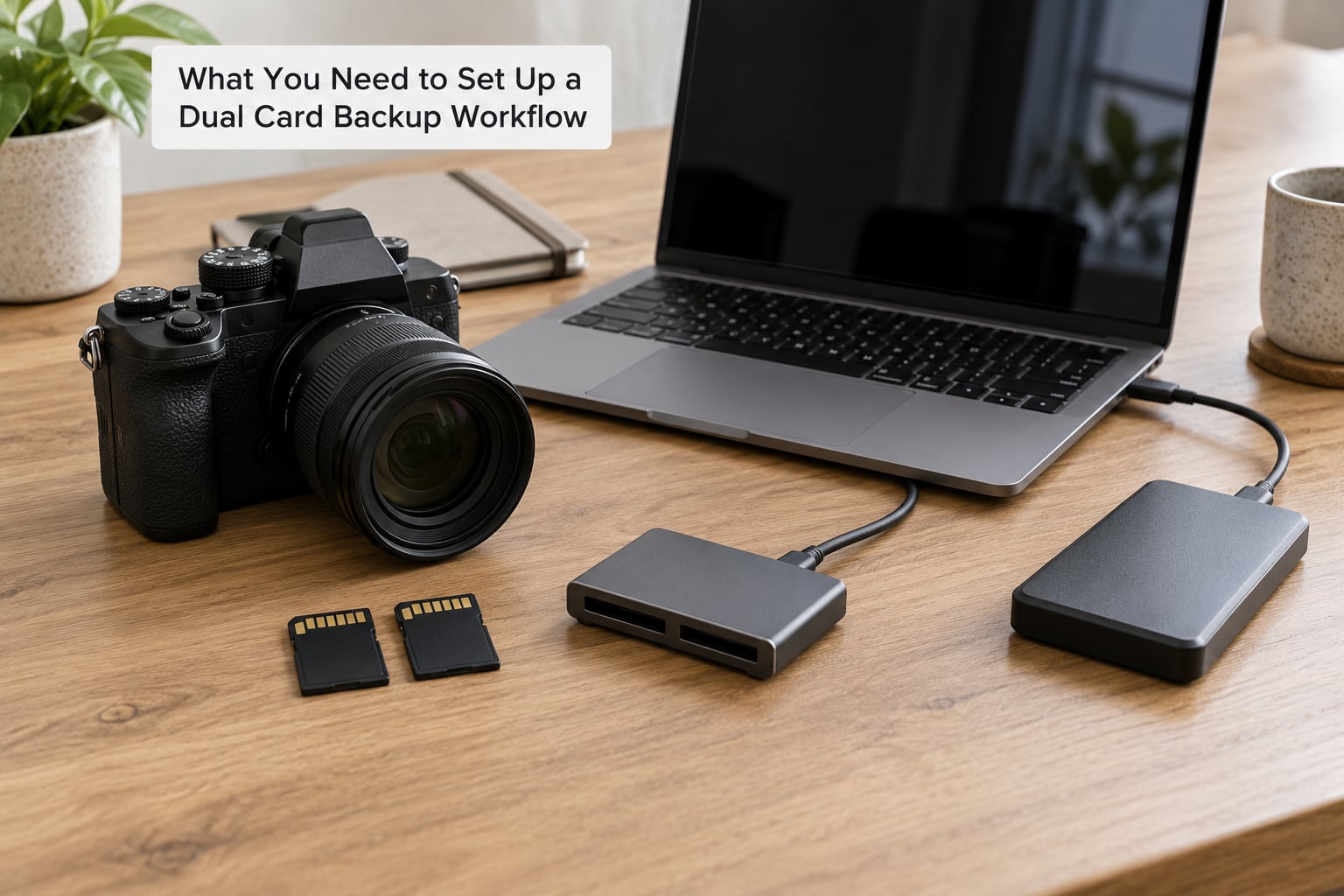
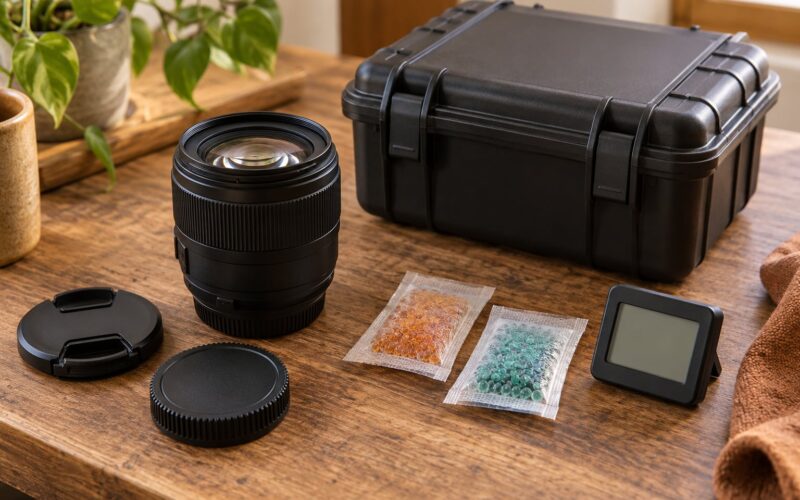
Most people already own most of this. The list matters more because the dual card backup workflow only works if you have somewhere to put the files after the shoot.
The camera
You need a body with two physical card slots, because one slot and one card cannot create a second copy no matter what the menu says. Check which card types your specific model takes. Some recent bodies pair a fast CFexpress Type B slot with a slower SD or UHS-II slot, and the slow slot drags the whole camera down with it.
Two matched memory cards
Use two cards of the same capacity, the same speed rating and, ideally, from the same batch. Mismatched cards are the quiet cause of a lot of confusion: the camera falls back to the slower card’s performance, and in some cases simply refuses to record video at all.
For stills, a UHS-I card rated V30 is enough for most work. If you shoot long bursts or high-resolution video, go V60 or V90, and use UHS-II or CFexpress if your body supports it. The number printed on the front of the card is a minimum sustained write speed, which is what matters for video, not the large read number on the back.
Doing the capacity math takes a minute. If you expect roughly 2,000 frames at about 25 MB per JPEG, that is about 50 GB per card, so a 64 GB card in each slot gives you comfortable headroom. Double it for RAW. A common setup for paid portrait work is 128 GB in the fast slot and 128 GB in the second slot, which also keeps both cards recording at the same speed.
A card reader, a computer and a second drive
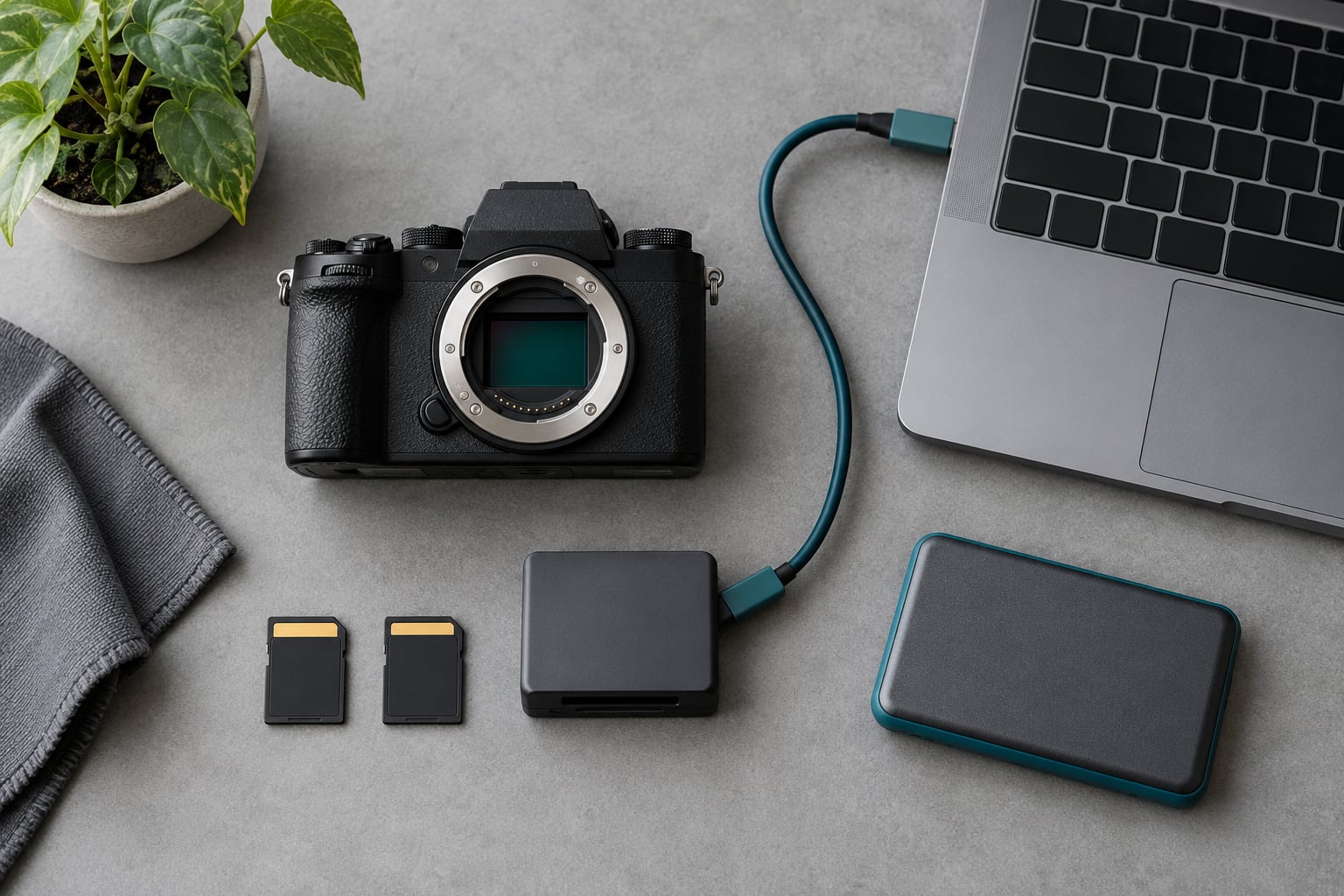
The two cards are your first copy. You need a card reader to get files off them, a computer to sort and copy, and a physically separate drive for copy two. A mirrored folder on a NAS is not copy two: if you delete a file on the NAS or a sync overwrites it, the mistake replicates to both places. Many photographers in r/photography and on fredmiranda.com insist on a second drive that is never attached to the same machine.
Optional but useful
A card wallet that fits every slot you own, a label maker or coloured tape for tracking, and a card health reader that tests write and read speeds before a busy season starts. Professionals do the testing up front rather than discovering a dying card mid-event.
Step-by-Step: Set Up Reliable Photo Redundancy
There are four stages: choose a mode, format and prepare the cards, prove both cards are receiving files, and then run the off-camera chain after the shoot. Skipping stage three is how people end up with a card full of photos they never knew was empty, because a slot that was never assigned in the menu writes nothing at all.
Choosing the Right Mode for Your Dual Card Backup Workflow
Four modes cover almost every situation. They differ in what gets written where, and in whether a single card failure costs you the shoot.
| Mode | What it writes | Redundancy | Best for | Tradeoff |
|---|---|---|---|---|
| Backup (mirror) | Identical files to both cards | Yes, full | Weddings, events, portraits, paid work | Halves your capacity per card |
| Overflow (sequential) | Fills card one, then continues on card two | No, none | Long landscape sessions, casual travel, high volume | One card holds everything until it fills |
| RAW + JPEG split | RAW to one slot, JPEG to the other | No | Clients who want JPEGs fast | Two different sets to manage |
| Video + still split | Video clips and stills to separate slots | No | Hybrid shooters running both | Long video clips can fill one slot |
The decision rule is short: use backup mode if the shoot cannot be repeated, and overflow if capacity is the constraint. Working photographers are split evenly between the two camps in forum threads, but the ones shooting paid work tend to land on redundancy every time, because a missed frame cannot be re-shot. Professionals quoted in r/WeddingPhotography and r/photography describe using mirror mode for exactly that reason and refusing overflow for client work.
Two details deserve their own warning. First, in overflow mode the second card is not a backup at all, it is just more room; when the first card fills, everything before that point exists in one place only. Second, many bodies store slot settings separately for photo mode and video mode, so a setting that looks correctly assigned in the stills menu may still be set to single-card in the movie menu. Check both.
Menu names vary by model and by year, so treat these as starting points and confirm against your body’s manual. On Canon EOS R-series bodies the card slot selection sits on the first shooting menu tab, alongside image quality and drive mode, or in Custom Functions on some models. On Nikon Z and most recent D bodies, go to the Setup menu, open the slot or file and format section, and choose backup, overflow or relay recording. On Sony bodies, look under Setup for the memory or storage page and the record media or simultaneous recording option. Fujifilm puts it under Save, where you pick the primary slot and whether the second receives the same files.
To confirm the setting took, take one photo and check that both slots show a file count increment, then check that the second slot behaves the way your mode promises. In split modes, one counter rises and the other stays flat, which is expected rather than a fault.
How to Format and Prepare Both Memory Cards
Format both cards in the camera, in a menu named format or card. Formatting on a computer writes a different kind of structure, and photographers lose images to that mismatch more often than they lose them to hardware failure.
Before each assignment, run a health check on each card with a card reader if you have one, and look for errors. Cards fail gradually more often than suddenly, and a card that reported errors during a format is a card you retire, not a card you try again.
Write down what you are doing while it is fresh. A lot of photographers set both slots to the same filename prefix, which means the copies from both cards land in one folder on the computer with duplicate numbers unless you rename or use a separate folder per card. Consistency here saves twenty minutes of sorting at midnight.
Two cautions. Never format a card while the other one holds the only copy of the same frames. And never format on location at an event: the standard practice reported by working shooters is to carry used cards back to the studio and only format once two verified copies exist.
How to Confirm Both Cards Are Receiving Photos
Do this test before every important assignment, not once a year. Settings get reset by firmware updates, by a borrowed body and by a card that was swapped over without anyone noticing.
Shoot a short burst of ten frames or so, then open the playback screens for each slot one at a time and compare the frame counts. They should match exactly in backup mode. Then remove each card separately and check them on a computer, where you can see the file sizes and open a few frames. A card that reports the right number of files but produces zero-byte or unreadable files has failed silently, which is worse than a card that never worked at all.
Do this on the actual cards you plan to shoot with. A test on a different card tells you nothing about the one in your bag.
How to Complete the Off-Camera Backup Chain
Two cards give you two copies at capture time, which covers the moment but not the drive failure, the stolen bag or the coffee on the laptop. Three copies on two kinds of media with one copy stored away from the building is the 3-2-1 rule that most photographers are looking for, and your card slots are simply layer one of it.
- Copy both cards to the computer. Read each card separately, into its own dated folder, and let the copy finish. Never remove a card or pull a battery while the write is still going.
- Copy the folder to a second drive. This is your layer two, and it must be a different physical device from the one holding your working files.
- Verify before you format. Compare file counts between the card and the second drive. If you want a stronger check, compare file sizes folder to folder or run a checksum, which takes a few minutes and catches files that copied but corrupted on the way.
- Send layer three away. Upload to cloud storage or hand the drive to someone else for the next day. A backup in the same room as the camera is a backup against a card failure and nothing else.
- Format the cards in the camera once you have two verified copies, and return them to your rotation system.
Between steps one and three, leave the cards in the camera or in a labelled wallet rather than loose in a pocket. Small cards get lost, and a lost card with unique files is a gap your second drive cannot fill. This part of the dual card backup workflow is the one most photographers treat as optional, and it is the part that actually covers the disasters.
Common Mistakes and How to Fix Them
Almost every lost shoot traces back to one of these, and most of them are human error rather than a dying card.
- The second slot was never assigned. Plenty of cameras boot with slot two set to record nothing. Open the slot settings before you leave the house and confirm both slots take files.
- Mismatched capacities or speeds. A slow card in the second slot can pull the whole camera down and can block video recording modes. Pair cards of the same rating and capacity.
- Using overflow for a shoot you cannot repeat. That is capacity thinking applied to a redundancy problem. Switch to backup mode.
- Assuming the cards are already backed up. Two cards in a bag are two cards in a bag. Offload, verify, second copy. The cards are the first copy, not the backup.
- Trusting a synced NAS as a backup. Sync propagates deletions and overwrites. You want a copy, not a mirror.
- Formatting too early. If you cannot name two locations holding the files, do not format. This is the mistake that turns a mishap into a loss.
- Pulling the battery or card mid-write. You can lose the file you were shooting and everything the buffer had not flushed. Let the write indicator finish.
- Not testing the workflow. A two-minute test shot before a wedding costs nothing. Discovering a misconfigured slot at reception costs a lot more.
On tracking, a simple visual system works better than a spreadsheet. One shooter described in the forum threads runs cards face up when fresh, face down once downloaded, and on their side when they still need attention, then counts the wallet before packing the bag. Whatever system you choose, the test is whether a stranger could look at your cards at the end of a long day and know which ones are safe to format.
Quick Checklist for Important Shoots
Before the shoot
- Two matched cards, same capacity and speed rating, both health-checked
- Slot mode set to backup for anything you cannot repeat
- Film mode and video mode slot settings both confirmed
- Both cards formatted in the camera
- Test burst fired and frame counts checked on each slot
- Card reader and second drive packed and tested
During the shoot
- Cards labelled so you know which is which
- Never formatted, never reformatted, never swapped mid-card
- Buffer and write warnings taken seriously rather than retried
- Slot usage watched during video segments
After the shoot
- Both cards offloaded to separate dated folders
- Copies verified by file count or checksum
- Second drive copy made and checked
- Third copy uploaded or stored offsite
- Cards formatted in the camera, never on a computer
Frequently Asked Questions
Do I need two memory cards for a photography backup workflow?
For any shoot you cannot repeat, yes. One card means one failure point, and cards fail from wear, from being dropped, from being formatted early and from being left in a hot car. Two cards in backup mode give you two independent copies of every frame the instant you press the shutter, before anything is offloaded. That does not replace external drives, but it is the layer that saves you when a card dies in the field.
Is it better to use overflow or duplicate recording for important portraits?
Duplicate recording, without much argument. Duplicate mode writes the same file to both cards, so you have two copies of every frame immediately. Overflow fills the first card then continues on the second, which doubles your capacity but leaves everything before the switch existing in one place only. Use overflow when you are shooting thousands of low-stakes frames. Use duplicate mode when a missed frame cannot be rebooked.
How often should I back up photos from both cards?
Offload both cards as soon as you are back at a base with power and a computer, not at the end of the week. Copy from each card into its own dated folder, copy that folder to a second drive, then verify the counts match before formatting anything. If you are on location for several days, get the cards onto a drive each evening. The riskiest moment is always the point where you have not yet made a verified copy.
What should I do if one card fails during a shoot?
Do not power off and do not reformat anything. Check whether the other slot still holds your frames: in backup mode the files are already on the second card, so stop worrying and keep shooting. Note which card failed and its position in the frame count, then set that slot to record nothing and continue on the working card. Never format the failed card on location, and never format the good one until both copies are verified off the camera.
Can two memory cards replace a separate external backup drive?
No. Two cards protect you against a single card failure at the moment of capture. They do not protect you against a stolen bag, a dropped laptop, a house flood or a drive that fails after the offload. The 3-2-1 approach is three copies, on two kinds of media, with one copy stored somewhere else. Your card slots are layer one; a separate drive is layer two; an offsite copy is layer three.
Should I format both cards in the camera before every assignment?
Yes, format both cards in the camera before each assignment, using the camera’s own format function rather than a computer’s quick format. Computers and cameras write different structures, and files that appear fine can fail to open later. The exception is timing: never format a card while the other card holds the only copy of those frames, and never format on location at an event. Format once two verified copies exist.
Start With One Change This Week
If your cards are not paired yet, that is the first thing to fix. Buy one matching card, set both slots to backup mode, and run the ten-frame test before you shoot anything. Then make it a rule: two cards get offloaded, verified and second-copied before either one is formatted. That is the whole dual card backup workflow in practice, and once it is a habit it stops taking any time at all.