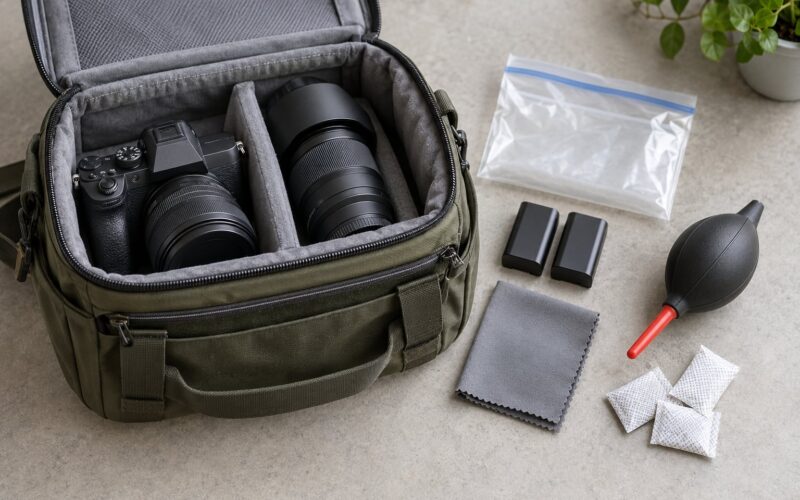
Formatting a memory card without losing work comes down to one habit: copy the files off, confirm the copies are real, then format the card in the camera body. Most lost shots are not caused by a failed format. They are caused by formatting before anyone checked that the copy actually finished.
The whole routine takes about ten minutes for a full card. If you learn how to format memory cards without losing work properly, the format prompt stops being a moment of panic and becomes the last step of a normal shoot.
Table of Contents
- What You Need
- Step-by-Step: How to Format Memory Cards Without Losing Work
- 1. Copy every file to the first backup
- 2. Make the second copy before you touch anything else
- 3. Verify the copies instead of trusting them
- 4. Eject the card properly, then format it in the camera
- 5. Confirm the card is empty and ready
- Formatting on a computer instead, when that is the only option
- Quick Format or Full Format: Which One You Want
- Common Mistakes
- Frequently Asked Questions
- Can formatting a memory card erase photos permanently?
- Should I format a memory card in the camera or on a computer?
- What file system should I use for photos and videos?
- Can I recover files after accidentally formatting a memory card?
- Why does my camera say the memory card is corrupted?
- How often should I format memory cards?
- Conclusion
What You Need
A short list, and only two items are genuinely essential.
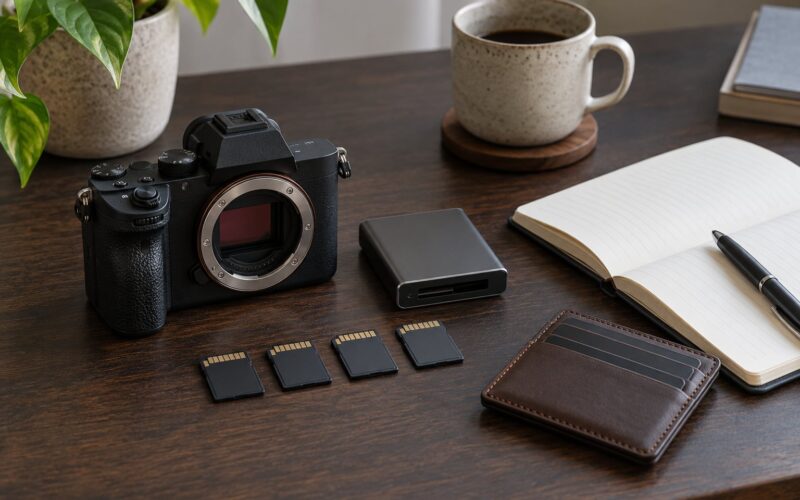
- A card reader. A USB-C or USB-A reader that matches your card type beats a camera dongle. Reading RAW off a slow dongle is where a lot of corrupt-frame stories come from.
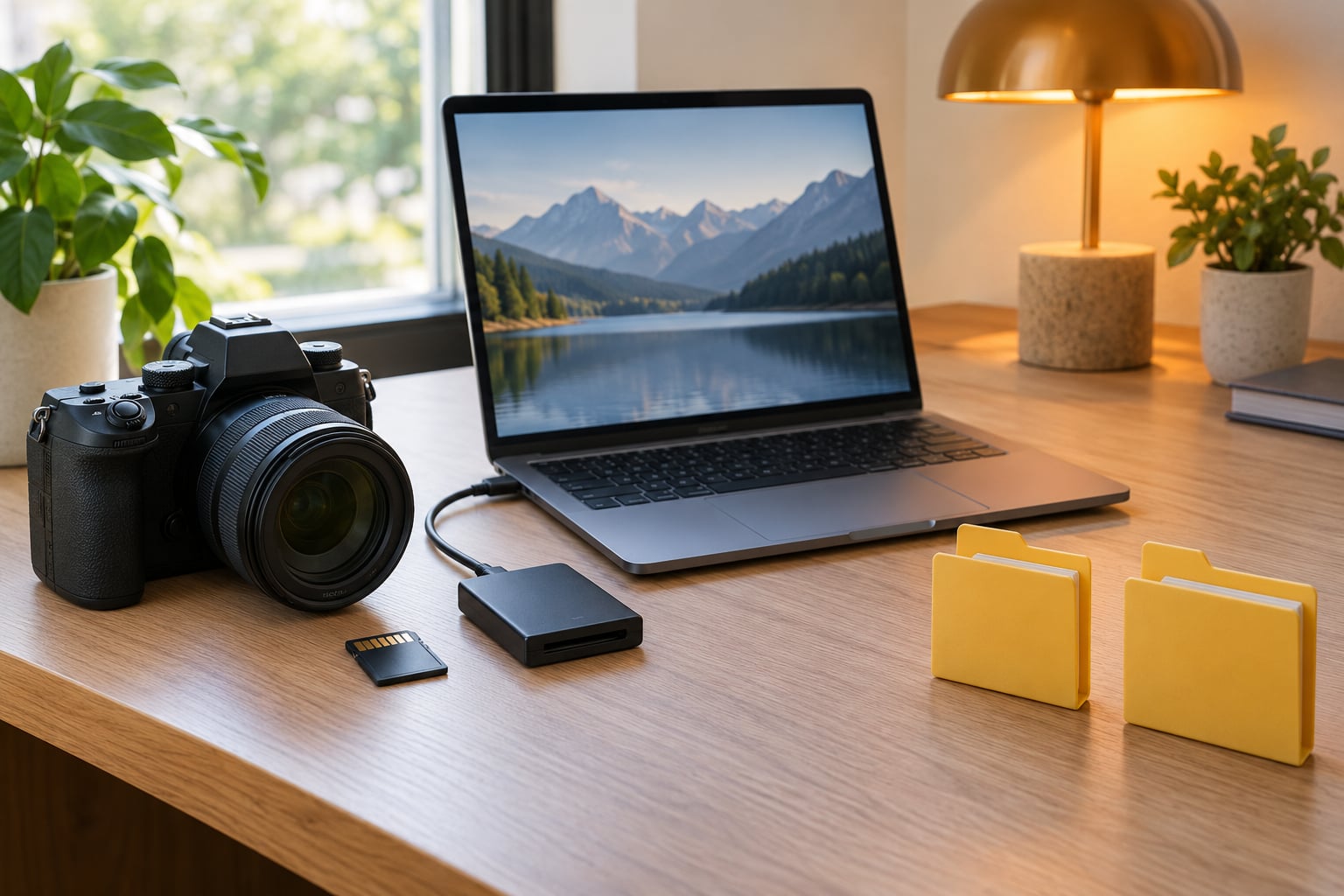
- Two backup destinations. Your laptop or desktop, plus a second drive, an external SSD, or a cloud folder. Two copies, not one copy plus the card, because the card is the thing you are about to erase.
- The camera manual, or the card’s spec sheet. You need to know which file system your body expects and whether it has one slot or two.
- A card health check. Portable utilities like CrystalDiskInfo and H2testw run without installation and tell you whether a card is dying before you trust it with a paid shoot.
- A clean destination folder. Name it for the shoot and the date, so a file count later means something. “New folder (3)” tells you nothing at 11pm.
Battery matters more than people expect. Formatting a large card can take a couple of minutes, and a camera that dies mid-format is a card you should not trust for the next job.
Step-by-Step: How to Format Memory Cards Without Losing Work
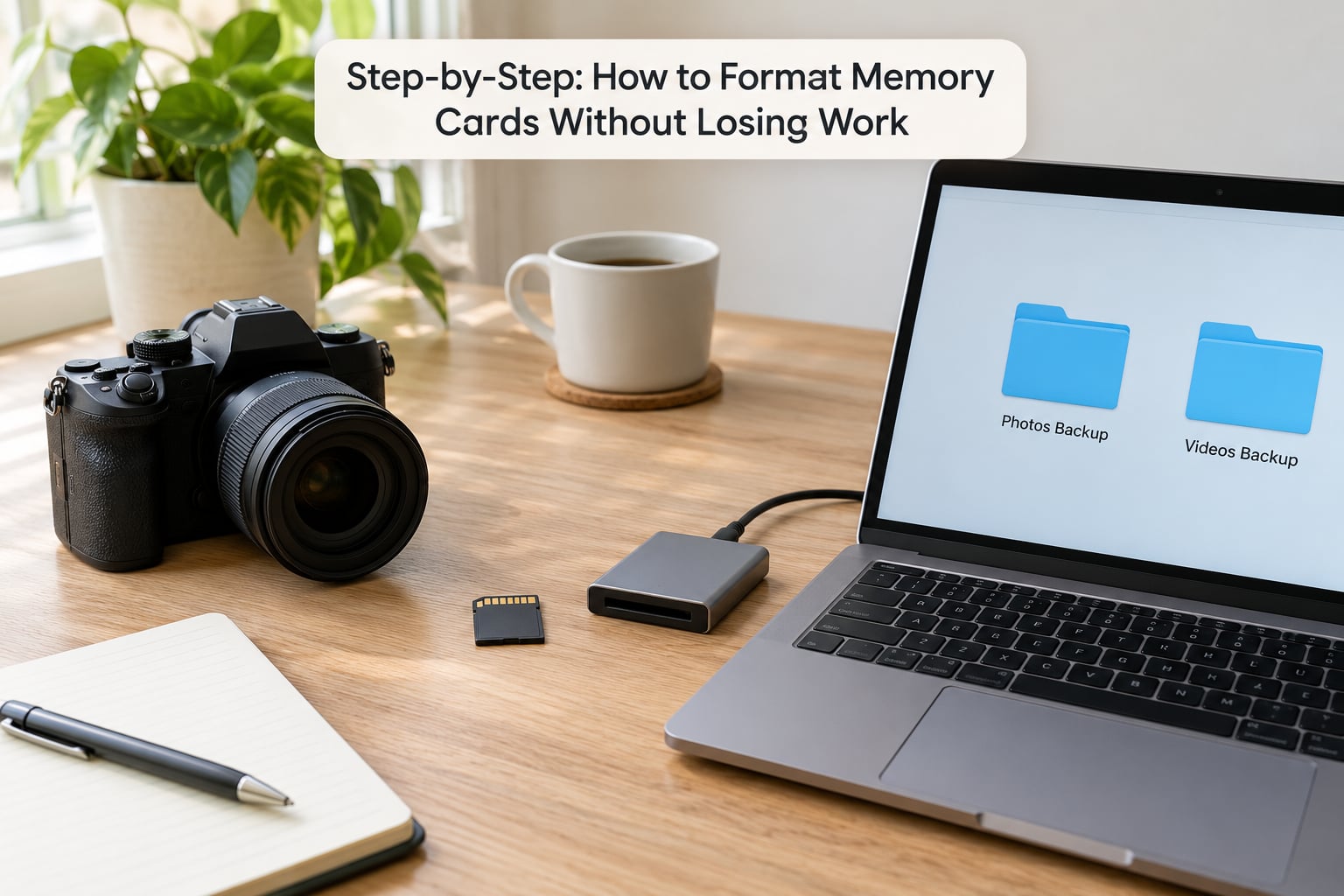
Five steps, in this order. Do not skip step three, even once, even when you are tired.
1. Copy every file to the first backup
Put the card in the reader and copy the entire contents, not just the DCIM folder if your body creates others. Copy the MISC, PRIVATE and thumbnail folders too when they exist; some cameras keep sidecar or face-detection data there.
2. Make the second copy before you touch anything else
Drag the newly created folder to your second destination and let it finish. A ten-minute job while the images load is much cheaper than a re-shoot, and most people skip it because they assume the first copy was fine.
3. Verify the copies instead of trusting them
This is the step nobody documents and everybody skips. Compare the file count in the card’s DCIM folder against the file count in each backup. Then open five or six files at random, spread across the shoot, and confirm they render.
If you want a stronger check, run a checksum comparison between the card and the first backup. It takes longer on a full card, and it is the only way to know the bytes match rather than just the filenames.
4. Eject the card properly, then format it in the camera
Use the operating system’s safe eject, wait for the prompt, then remove the reader. Insert the card into the body you shoot with and format from the body’s own menu. Experienced shooters are near-universal on this, and the r/photography threads make the same point repeatedly: the camera writes the exact file system and directory structure it expects, which is what prevents “card not formatted” messages later.
5. Confirm the card is empty and ready
After the format completes, check that the card shows no images in playback and that the body reports free space close to its full capacity. Anything else means the format did not take.
Formatting on a computer instead, when that is the only option
Sometimes you need to format a card on a computer, such as when a body cannot see a card the right camera can. Windows: right-click the drive in File Explorer, choose Format, and confirm you have picked the right drive letter by checking the volume label and size twice. macOS: Disk Utility, select the drive on the left, Erase, then choose a format scheme. Linux: Disk Utility, or the terminal with lsblk to identify the device first.
Choose exFAT for anything over 32GB, since Windows will not create a FAT32 partition larger than 32GB. NTFS works in most modern camera bodies but not in older ones, so check the manual. A card formatted in NTFS on an older body often shows up as unreadable rather than as an error you can decode.
Quick Format or Full Format: Which One You Want
A quick format rewrites the directory and marks every block as free. It takes seconds, and because the photo data is still physically sitting there until something overwrites it, a recovery tool occasionally finds files afterwards.
A full format reads or rewrites the whole card, which takes longer and, on most bodies, checks every block along the way. That pass is what surfaces a card that is starting to fail, and it leaves far less for recovery software to work with.
My rule: full format for a brand-new card and for any card that has thrown read or write errors. Quick format for routine clearing after a shoot you have already backed up twice.
Common Mistakes
Every one of these has a fix, and all of them show up repeatedly in the photography forums.
- Formatting the wrong drive. On Windows this is the single most destructive mistake, because the system pops up a permission prompt before it erases anything. Read the drive letter and capacity aloud to yourself before you confirm. Then unplug the card and check the label.
- Copying and formatting without verifying. A cancelled copy, a locked file, or a card reader that dropped out leaves you with a partial folder that looks complete. File count plus five spot-checked files takes under a minute.
- Relying on one backup. A TenForums regular put the rule better than any guide: always back up critical data to two places. Memory cards are consumable media, not storage.
- Pulling the card mid-copy or mid-format. This is what produces the write errors and corrupted files that force the next format in the first place.
- Using the wrong file system. NTFS in a body that only reads exFAT and FAT32, or FAT32 on a 128GB card, wastes an afternoon and can leave the body unable to recognise a card you know is fine.
- Ignoring a format prompt on a healthy card. One random request usually means nothing. The same prompt on a card that was working last week usually means the card is going. A commenter on a Windows forum who owned three 8GB cards with the same problem had bought fakes; small-capacity cards from marketplace sellers are where counterfeits cluster.
Frequently Asked Questions
Can formatting a memory card erase photos permanently?
Usually yes, and you should treat it that way. A quick format leaves the data blocks physically present, which is why recovery software sometimes finds something. A full format overwrites far more of the card. The only real protection is verifying two backups before you format, not choosing a gentler format option.
Should I format a memory card in the camera or on a computer?
In the camera, whenever the body will read the card. Formatting in-camera writes the exact file system and directory layout the camera expects, which avoids the card not formatted errors people hit after a computer format. Use a computer only for a card the body cannot read, a legacy body with a different file system, or a full health test.
What file system should I use for photos and videos?
exFAT for anything over 32GB, which covers most current cards and every camera made in the last decade or so. FAT32 has a hard 4GB single-file limit, which splits long video clips, and Windows refuses to create FAT32 partitions above 32GB. NTFS is read by most modern bodies but not older ones, so check your manual first.
Can I recover files after accidentally formatting a memory card?
Sometimes, and the odds drop fast once new data lands on the card. Stop using the card immediately, do not shoot on it, and run recovery software on it from a computer. Cards have no SSD-style TRIM logic, so after a format the data is often still there with only the directory erased. Results are hit or miss, and writing new files to the card ends the chance.
Why does my camera say the memory card is corrupted?
Usually because the file system or partition structure is not what the body expects, often after the card was formatted on a computer. It can also mean the card itself is failing, particularly if the message appears on a card that worked yesterday. Format it in-camera first. If the message returns, test the card’s health and retire it if it fails.
How often should I format memory cards?
After every shoot, once your files are backed up and verified twice. Regular formatting keeps directories clean, reclaims fragmented space, and gives you a chance to notice a card failing before it fails mid-job. Formatting itself does not meaningfully wear a card out; constant rewriting of data does. How long a card lasts depends far more on capacity, write volume, and card quality than on format count.
Conclusion
Do one thing before the next format: verify and back up the card’s contents, then open a handful of files from both copies and confirm they render. Once two readable copies exist, format the card in the camera body and check that it comes back empty.
That order is the whole answer to how to format memory cards without losing work. The format itself is the easy part.